
- Where it is
- Anywhere in the app
- Ctrl+K
- Who can open it
- EveryoneEveryone. It only ever offers what your own account is allowed to open.
- What it writes
- Nothing. It only navigates and runs actions you could have reached by hand.
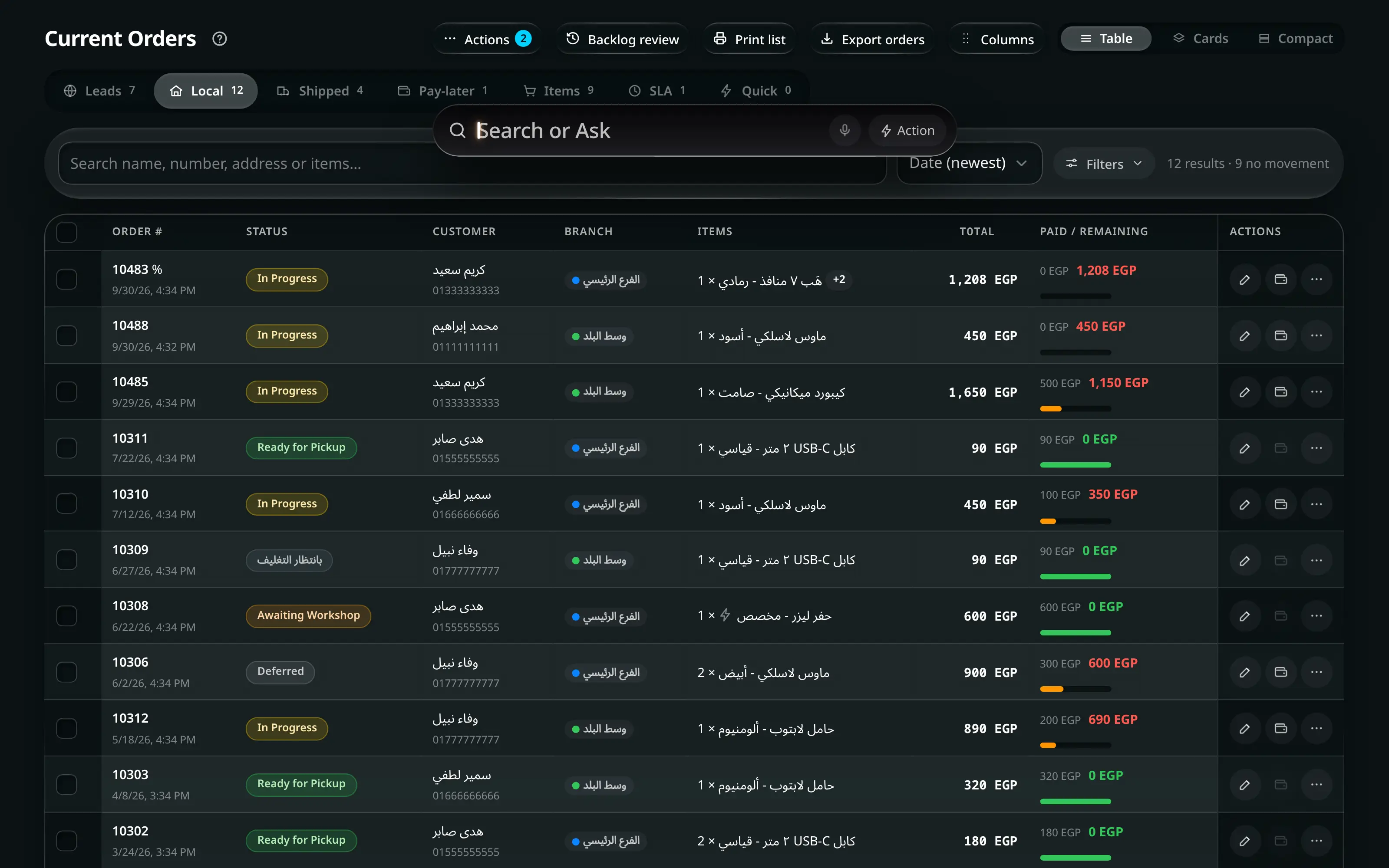
Ctrl + K — or ⌘ + K on a Mac — opens the search palette over whatever you were doing. The header’s Search or Ask button opens the same thing — it is the same bar at rest, and it grows into the palette where it sits. On a phone it is just the magnifier.
The search bar
It opens as a single bar reading Search or Ask. Nothing else appears until you type. As matches come in, the bar stays small and a Show results button appears under it with the number found. Press it, press ↓, or pick a category, and the bar opens into the full results list.
- Completion. As you type, the rest of the best match appears in grey after your text. Tab or → accepts it.
- Dictate. The microphone button types what you say into the bar, in the app’s current language. It only appears when your browser supports speech input. In Chrome, the browser sends the audio to Google’s speech service to do this. While it listens, the microphone turns into an orange Stop dictation button and the bar reads Listening…. Tap it again, or press Esc, to stop — the first Esc only stops listening, the second closes search. It also stops on its own a moment after you finish speaking, and if nothing is heard for about eight seconds it gives up and says Nothing was heard. Tap the microphone to try again.
- Action. The Action button lists only the actions, so you can run one without searching for it.
What it searches
Three kinds of result, each labelled so you know what you are about to open.
Type part of a screen’s name. Section results jump straight there.
Only screens your account can open are listed. If you cannot find one, you are not allowed to open it — see Roles and permissions.
Record results come from thirteen collections at once:
Type Matched on Orders Order number, customer, phone, address, governorate, items, status, shipper, source, tracking number, payment reference, notes Customers Name, phone, email, wallet balance, debt Products Product, variant, barcode, category, description, price, wholesale price Bundles Name Employees Name, department, role Online leads Reference, customer Tasks Task, assignee, deadline Suppliers Name, phone Workshops Name, specialty Supply orders PO number, invoice Announcements Message, who posted it Cash entries Order, transfer, amount, type, branch, payment method Count sessions and losses Location, item, reason Every field that matched is shown under the result, so you can tell why a row came back — a phone number matching is a different thing from a name matching.
Action results run immediately. The list adapts to your role; an employee never sees an administrator’s action, not even greyed out.
Action What it opens New Order The full order form Quick Order (F2) The on-the-spot sale sheet Add Customer A new customer profile Start-of-day Balance The opening safe count for your branch Settle Today Today’s settlement Request Expense · Record Expense An expense request, or a direct entry if you are an administrator Start Inventory Count · Report Stock Loss A count session, or a loss report Create Team Task Task assignment Local Orders · Online Leads · Shipped Orders · Pay-Later Orders · SLA & Deadlines · Processing Orders The matching tab of Current Orders Manage Products · Manage Services · Branches & Safes · Shipping Companies The matching tool in Resources People & Roles · Administration Overview · Team Tasks · Attendance · Payroll The matching tab of Administration Toggle Employee View · Toggle Theme · Toggle Performance Mode · Switch Language · Sign out Immediately
Searching in either language
The search is aware of both scripts. It normalises Arabic spelling — the alef family,
the ta marbuta, the tashkeel — so العملاء and العملاءِ find the same thing, and it
converts Arabic-Indic digits, so a phone number typed either way matches.
It also tolerates a near miss: a word within two edits of a real one still matches, scored below the exact ones. A half-remembered name is usually enough.
Keys
| Key | Does |
|---|---|
| Ctrl + K | Open |
| ↓ | Open the results list, when only the bar is showing |
| Tab or → | Accept the grey completion |
| ↑ ↓ | Move through results |
| Enter | Open the highlighted result |
| Esc | Close |
Shortcuts are matched on the physical key, not the character it produces, so Ctrl + K works identically with an Arabic keyboard layout.
Recents
With an empty query the palette lists what you opened recently, tagged Recent. It is per account and per device.