
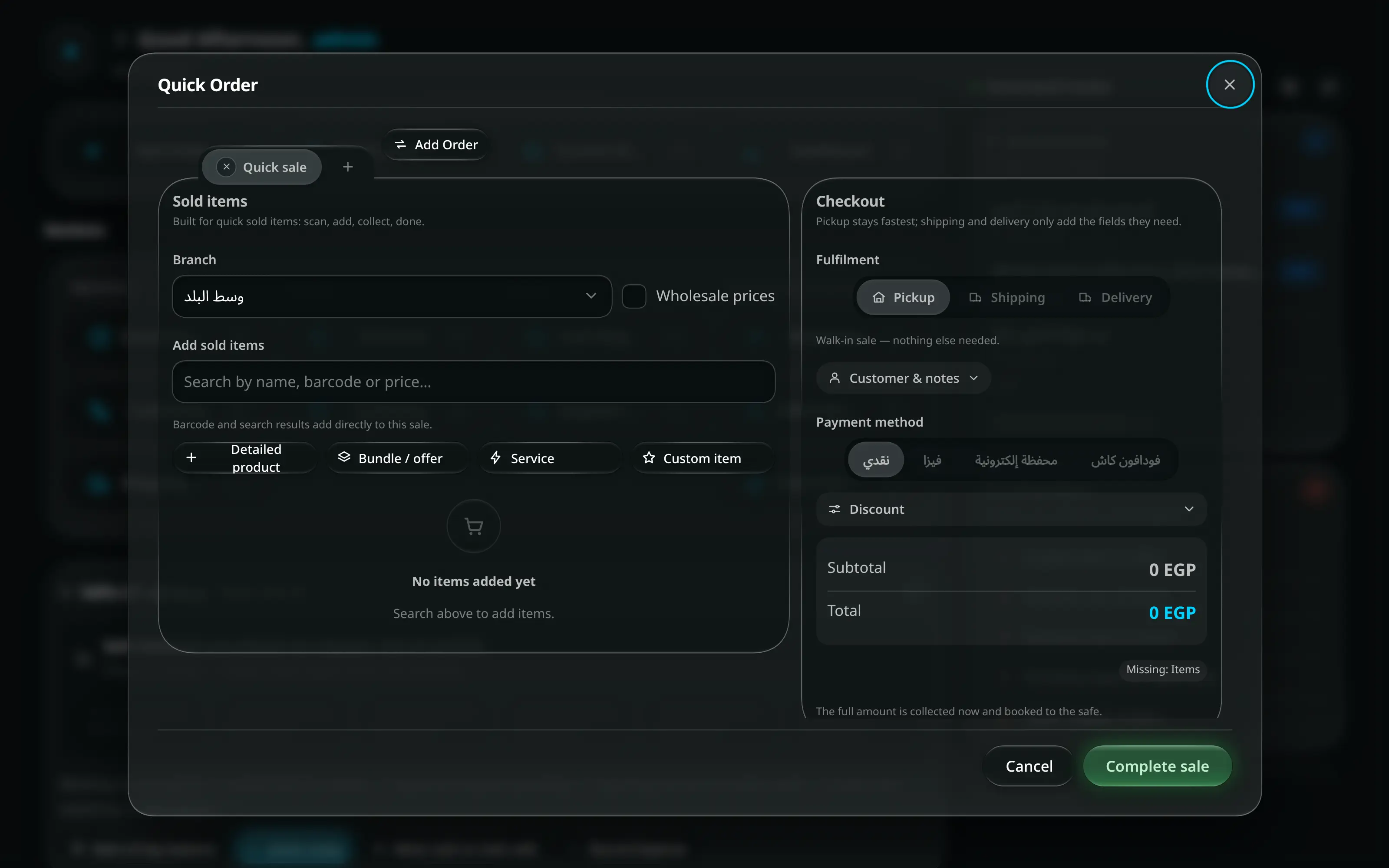
Most shops that sell ready-made goods do nearly every sale this way: the item is on the shelf, the customer takes it now, and they pay the whole amount now.
That is what Quick Order is for. Not “the fast screen when the shop is busy” — the screen for a sale with no future. Nothing is owed, nothing is being made, nothing is going out with a courier, so there is nothing to follow up and nothing to track.
The loop
- F2, from anywhere in the app.
- Pick the branch. It decides which stock goes down and which safe the money lands in.
- Scan or search. A barcode adds the item; typing three letters finds it by name. Four buttons cover the rest — a detailed product, a bundle, a service, or a one-off custom item.
- Take the payment. Cash, card, an e-wallet — whatever is set up for that branch. A discount that would eat into cost is capped, and says so.
- Complete sale. The order is recorded, stock goes down, and the full amount is booked to the branch safe as income, immediately.
Afterwards it offers the four things you actually want next: a WhatsApp confirmation, a print, the order list, or a new sale.
When it hands the sale over
Quick Order has a Fulfilment choice, and it starts on Pickup — walk-in sale, nothing else needed.
Choose Shipping or Delivery instead and it tells you plainly what happens: a shipment is tracked, so it continues in Add Order. Fill in what you know — the company, the governorate, the address, the fee — and press Move to Add Order. Everything you typed moves with it. Nothing is retyped.
The same works the other way: a draft in Add Order that turns out to be an ordinary counter sale moves to Quick Order as a pickup.
Holding a sale
Someone puts three things on the counter and goes back for a fourth, and there are two people behind them.
Press New sale. The current one stays open as its own tab while you serve the next customer, and you come back to it when they return. Five held sales at once is the limit, and the app says so rather than silently dropping one.
What it deliberately does not do
Reading this list is the fastest way to know whether you are on the right screen:
- No deposit and no remaining balance. A quick sale is paid in full by definition. Money owed lives in Add Order.
- No delivery date, no status, no courier. There is nothing to move through a pipeline.
- A customer is optional. Attach one if they are a regular or you want to send them a confirmation. Without one the sale is recorded against walk-in customer — and attaching a customer still does not create a debt.
Two habits worth building
- One person, one shift, one drawer. The end-of-day count is only meaningful if it is clear whose day it is counting.
- Never take a payment outside the app to save ten seconds. That is the single biggest source of a variance nobody can explain at closing.