
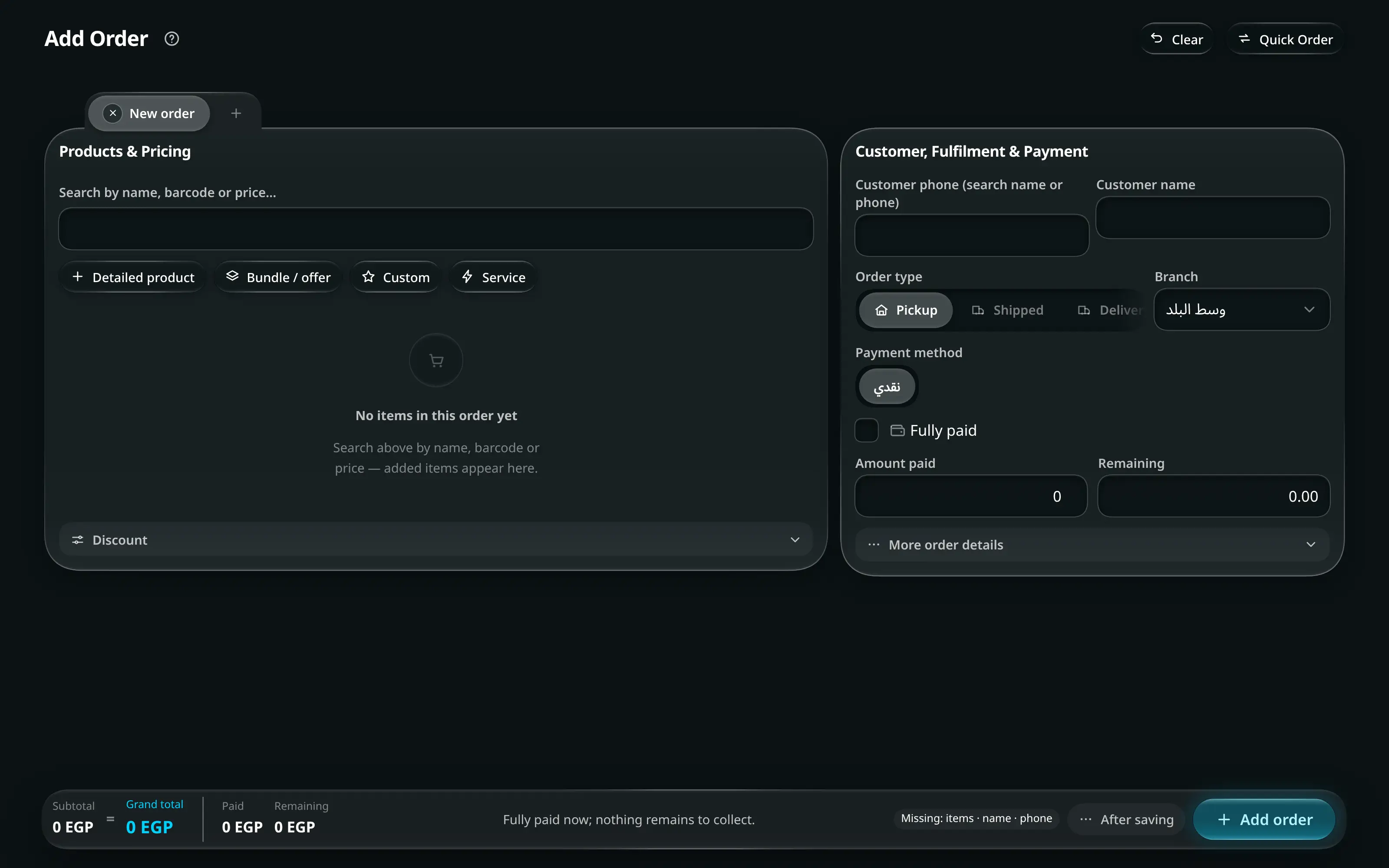
There are three ways in, and picking the right one saves more time than any shortcut inside them.
Quick Order (F2) — the sale that finishes here
Press F2 from anywhere. Scan a barcode or type three letters of a product name, take the money, done. Use it whenever the sale is complete on the spot: the goods are ready, the customer takes them, and the full amount is collected now. Nothing is left to track, which is why the screen has no deposit, no delivery date and no courier on it.
If they wander off mid-sale, hold it and start the next customer. Up to five sales can be held at once, and you resume one exactly where it was.
If the order turns out to need shipping or delivery, Quick Order hands it over: fill in what you know and press Move to Add Order — nothing is retyped.
Add Order — everything else
Use the full form when the order has anything unusual in it:
- A delivery or a shipment. The customer’s address, the courier and the delivery date all live here.
- A deposit or partial payment. Enter what they paid; the remaining balance is tracked on the customer, not on a note.
- Customisation. Engraving, a printed image, a size that has to be made — each line item can carry its own customisation fields.
- Workshop work. Send a line out to a workshop and the fee is recorded against that job, so the order cannot be handed over before it is settled.
The money line
At the bottom of the form is one equation, and it is worth reading it as an equation rather than a total:
subtotal − discount + shipping = grand total │ paid → remaining
If remaining is not zero when you save, the order is a pay-later order and the
balance lands on the customer’s record. That is the intended behaviour — it is
how آجل works — but it is worth knowing that is what you just did.
Orders from the online store
Orders placed on your storefront arrive in the Leads tab of Current Orders, not straight into the pipeline. They wait there because an online order carries things a counter order does not: an uploaded payment proof to check, an address to verify, and stock that may have sold in the shop while the customer was checking out. Review, then approve into a real order.
When the internet is down
Keep selling. Orders taken offline are held on the device and sent when the connection returns, where the server re-checks them against current stock and prices. Anything that no longer adds up — the last one sold in the shop meanwhile — goes into a review queue rather than being accepted silently.
The app judges the connection by whether it can actually reach your data, not by the Wi-Fi icon — a network that is connected but carries nothing counts as down after a few seconds, and the app switches to holding orders on the device. If the connection drops while a save is already on its way, the loader says so: keep the page open and it finishes by itself when the connection returns.