
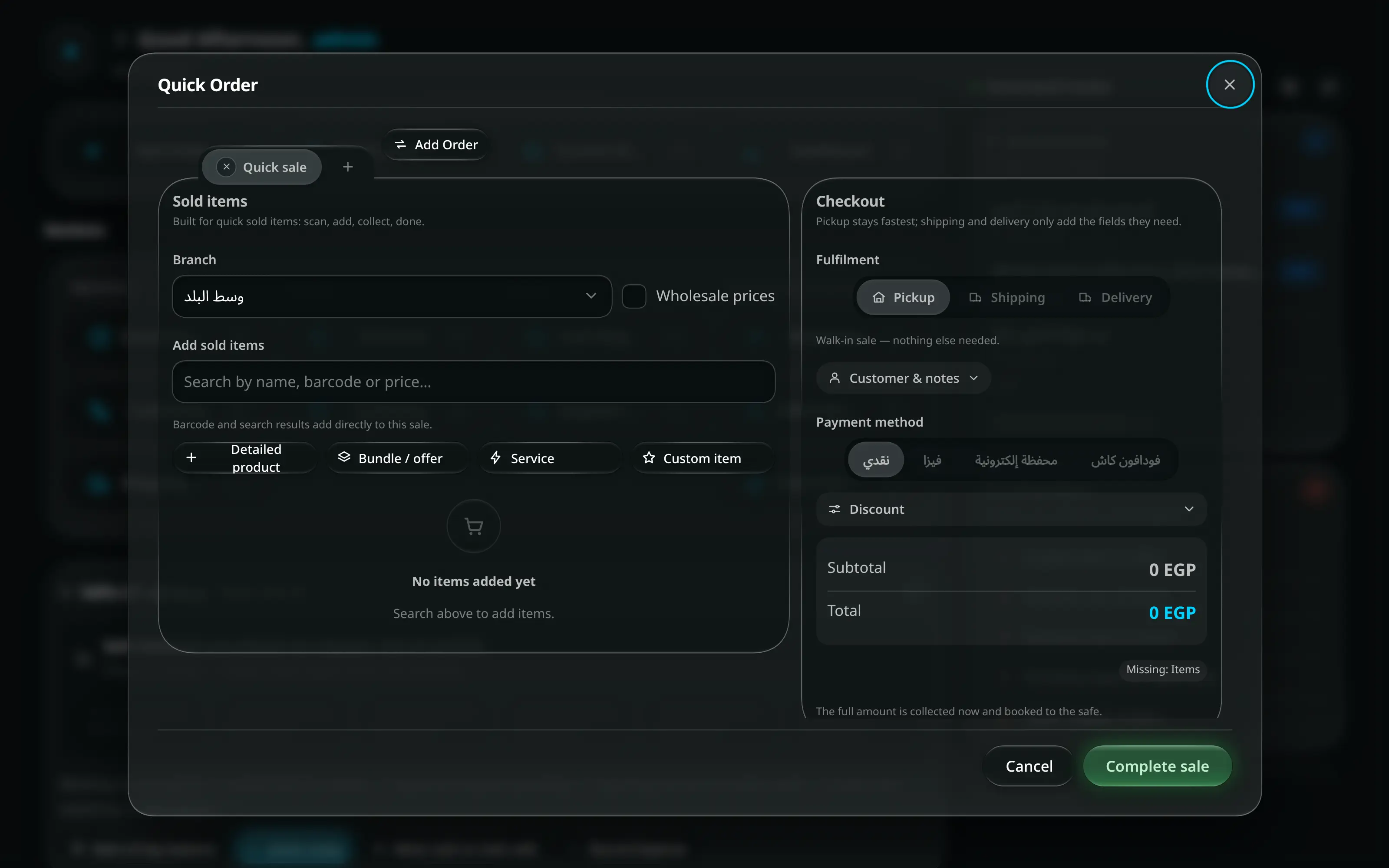
- Where it is
- Anywhere in the app
- Quick Order (F2)
- Who can open it
- EveryoneEveryone. It is the counter screen.
- Tabs
- Quick sale
- New sale
- Add Order
- What it writes
- An order, flagged as a quick sale, which appears in the Quick tab of Current Orders
- A stock decrement at the branch you picked
- One income entry in the cash registry, for the full amount, immediately
- A customer record, only if you attached one
What Quick Order is for
A sale that is already finished when the customer walks away. The items were made or stocked in advance, they are ready on the shelf, the customer takes them now, and they pay the whole amount now. There is nothing left to follow up, so there is nothing to track.
That is the whole distinction. Quick Order is not “the fast screen for when the shop is busy” — it is the screen for orders that have no future. Most shops that sell ready-made goods will use it for nearly every sale.
The screen says this in its own words: Built for quick sold items: scan, add, collect, done, and, above the total, The full amount is collected now and booked to the safe.
When to use the other screen instead
Use Add Order when anything is still owed or still to happen:
| Situation | Screen |
|---|---|
| Ready goods, paid in full, customer takes them now | Quick Order |
| Customer pays part now and the rest later | Add Order |
| Goods are going out with a shipping company | Add Order |
| Goods are going out with your own delivery driver | Add Order |
| The item has to be made, customised, or sent to a workshop | Add Order |
| The customer wants a delivery date | Add Order |
You do not have to decide before you start. Quick Order hands the sale over the moment it stops being a counter sale — see step 3.
Doing a quick sale
- Anywhere
- Quick Order (F2)
F2 from any screen, or the Quick Order button in the header. On a phone or a terminal use the header button — the function keys are a desktop convenience.
Branch decides which branch’s stock is reduced and which safe the money lands in. It starts on your default branch.
Wholesale prices beside it re-prices the whole sale at wholesale. Leave it off for an ordinary retail customer.
Search by name, barcode or price… — a scanned barcode adds the item straight to the sale, and so does picking a search result. Nothing else is needed for an ordinary item.
Four buttons cover everything a search cannot add:
Button Use it for Detailed product An item that needs a variant, a customisation field, or a hand-set price Bundle / offer A bundle — its stock comes out of the items inside it Service Something you do rather than something you hold Custom item A one-off that is not in the catalogue Each line then has − Quantity +, a unit price, a line total and a Remove.
- Checkout
- Fulfilment
- Pickup
Pickup is the default and reads Walk-in sale — nothing else needed. That is the case this screen exists for.
Choosing Shipping or Delivery instead tells you plainly what happens next: A shipment is tracked, so it continues in Add Order. Fill in what you know — the shipping company, the governorate, the address, the fee — and the sale moves to Add Order with all of it intact. Nothing is retyped.
Attach a customer, if it mattersoptionalاختياري
- Checkout
- Customer & notes
Folded away by default, because a walk-in does not need one. Open it to search by Phone or name, set the Customer name, pick an Order source and add Notes.
Attaching a customer files the sale on their record and lets you send them a WhatsApp confirmation afterwards. With nobody attached the sale is recorded against Walk-in customer.
- Checkout
- Payment method
The methods shown are the ones configured for that branch — cash, card, an e-wallet, and so on. Payment ref / wallet no. is optional and is there for a wallet transfer reference.
Discount folds out an Amount / Percent pair. A discount that would eat into cost is capped, and says so: Capped — a discount may not eat into cost.
Complete sale.
A confirmation panel — Confirm quick sale — shows the total and the words collected now before anything is written. The button is disabled while anything is missing, and the strip above it names what: Missing: Items, Choose a branch, Choose a payment method.
Sale recorded! — with the order number, the paid amount, and four things you can do next:
Button Does Send confirmation via WhatsApp Opens the send sheet with the order confirmation, editable, beside a WhatsApp-style preview; Copy & open WhatsApp copies it and opens the customer’s chat Print Receipt or invoice Go to list Opens Current Orders New sale Clears and starts the next one
Holding a sale
Someone puts three things on the counter and goes back for a fourth, and there are two people behind them.
The docked tab strip joins the Sold items panel. The active Quick sale is one tab; press the + beside it to start another while the current sale stays open. Up to five quick sales can be held at once; a sixth is refused with You can hold up to five quick sales at once.
An empty held sale closes immediately. Discarding a held sale with items or details asks first: Discard this held sale? Its items and details will be lost.
Moving a sale between the two screens
Both directions exist, and neither retypes anything.
| From | Control | Result |
|---|---|---|
| Quick Order → Add Order | Move to Add Order | Moved to Add Order — nothing was retyped. Use it when the customer decides they want it delivered, or wants to pay part now. |
| Add Order → Quick Order | Quick Order beside Clear | Moved here as a pickup — a quick sale is paid and collected at the counter. Its tooltip says it moves this draft to Quick Order to continue it as a walk-in counter sale. |
Both refuse an empty draft: Add an item or a customer first — there is nothing to move yet.
Where the sale shows up afterwards
| Screen | What you will see |
|---|---|
| Current Orders → Quick | The sale itself, filtered by day and branch |
| Cash Registry | One income entry, against the branch safe, on the payment method used |
| Inventory | The stock, already reduced |
| Customers | The sale on the customer’s record — only if you attached one |