
- Where it is
- Home
- Inventory
- Who can open it
- Administrators onlyAn employee account cannot open this screen at all.
- Tabs
- Stock
- Reorder
- Materials
- Offers
- Movement Log
- What it writes
- Stock quantities at a branch or warehouse
- Average cost per item, recalculated as goods are received
- A received, fully paid supply order and a supplier-linked expense — when you receive against a known supplier
- A plain cash purchase with a source and invoice note — when you bought it retail
- Reorder limits per item
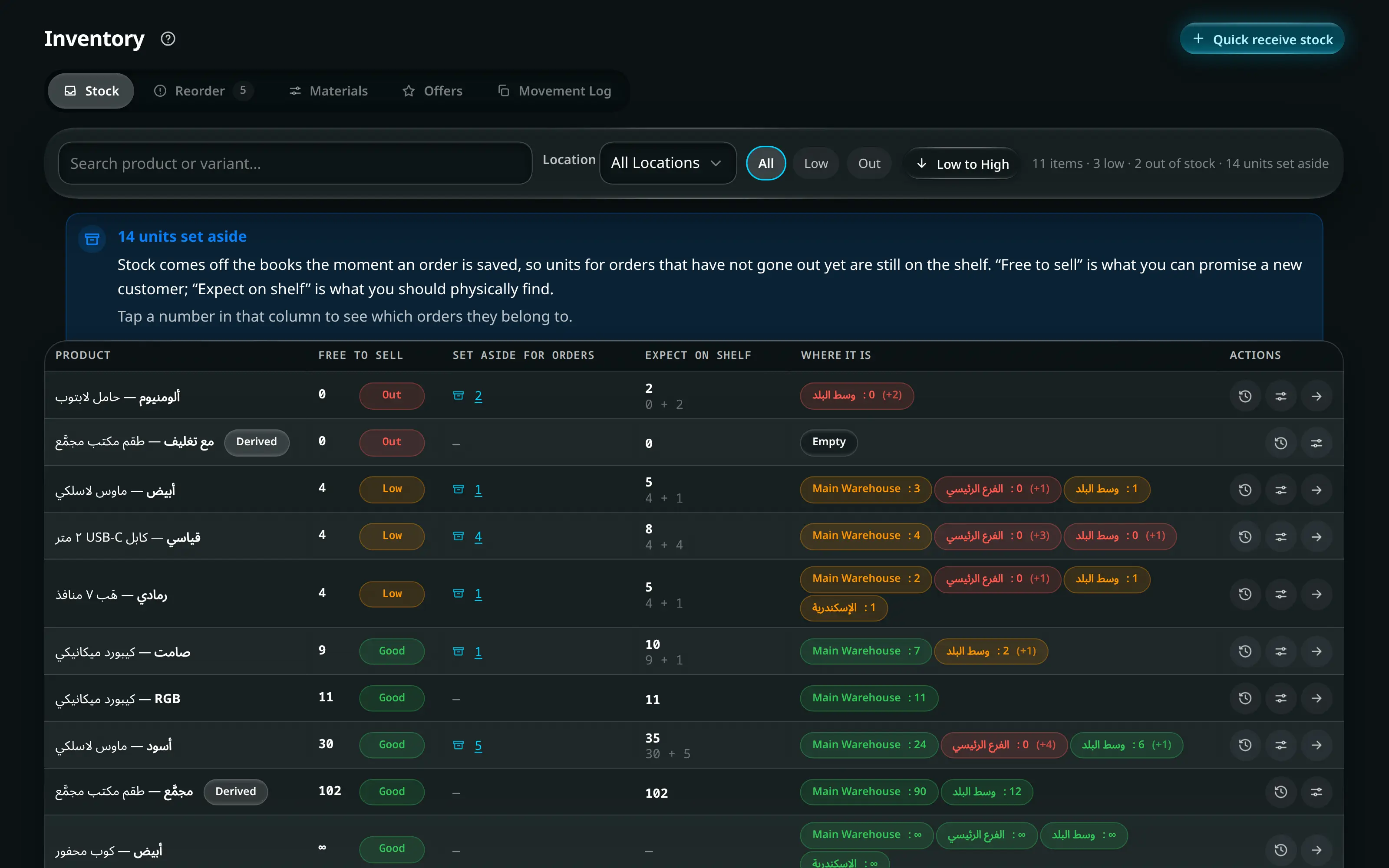
The three stock numbers, and why there are three
This is the part of the screen worth reading once carefully. Every row shows three different quantities and they answer different questions:
| Column | Means | Use it for |
|---|---|---|
| Free to sell | Available to sell to the next customer | Can I sell this right now? |
| Set aside for orders | Sold, but still in the building — being prepared, or packed and waiting for a courier | Why is the shelf fuller than the system says? |
| Expect on shelf | Free to sell plus set aside — what you should physically see | Counting |
Stock
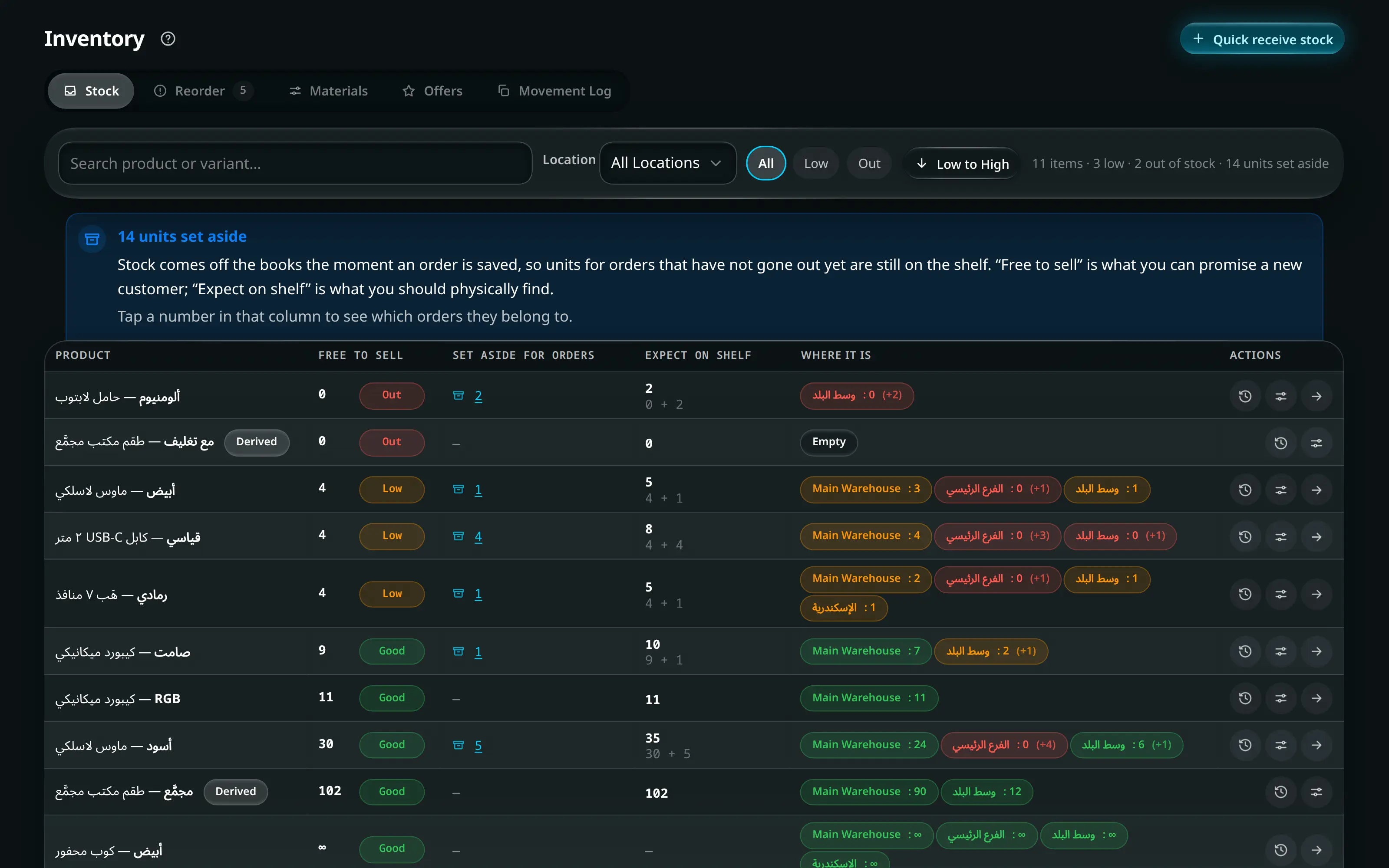
Numbered on the screenshot
- 1Stock, Reorder, Materials, Offers and the Movement Log.
- 2Search a product or a variant.
- 3Location, stock status and sort. “All Locations” aggregates; a single branch shows only what is there.
- 4Quick receive stock — the button that brings goods in.
Filter by Location (or All Locations), by Stock status — Out Low Good — and sort low-to-high to put the problems at the top.
Per row: (how it is spread across locations), , , and .
The column after Expect on shelf changes with the location filter: at All Locations it is Where it is, the spread across branches; at a single location there is nothing to spread, so the slot carries that location’s Low-stock limit instead — the number the Low badge is measured against. The last column is Actions, and it stays where it is while the table scrolls sideways.
Reorder
Everything below its limit, with the urgency, what it blocks if you run out, what is already on order, and a suggested quantity.
Filter by urgency and by kind — Everything Products Materials. Select rows and use Order these or Export selected; the whole list exports with Export reorder list.
A clean list says so: Nothing needs reordering — every product and material is above its limit.
Some rows cannot be ordered at all. A product assembled from materials shows what to buy instead — Buy: …, with what is on hand and what each unit eats. If the material it is built from has been archived or deleted, there is nothing left to order against it, and the row says Waiting on a material that is no longer on the books. Pick such a row and it is left out of the order: the dialog names it under “N selected item(s) are not in this order” rather than dropping it quietly. Restore the material from the archive to order it again.
Bringing goods in
- Inventory
- Quick receive stock
One dialog covers product variants, compound materials and bulk materials, across several locations, in a single save. Its first question is the important one.
What are you doing?
Choice What it means Ordering it The goods are still coming. Nothing is paid now — it creates a supply order to receive later Already bought it The goods are here and paid for. Stock goes up now Getting this right is what keeps Suppliers & Workshops honest — an order that has not arrived should not be stock, and stock that arrived should not still be on order.
Buying all of this from one place? sets every line at once, and any line can be changed afterwards.
Source What is written A known supplier A received, fully paid supply order plus a supplier-linked expense — so the supplier’s history and balance are right A retail or cash purchase A plain cash purchase carrying the Shop / source name and the invoice number. No supplier balance moves The dialog explains the second one itself: For the lines with no supplier chosen — no supplier balance is affected.
Per line: the item, Qty, Unit Cost, Goes to (which branch or warehouse) and the line total.
Then Payment source — which safe the money comes out of — Date / expected arrival, Invoice # (optional) and Notes.
Create orders.
Refusals are specific: A cost cannot be negative. · Choose where each line goes. · Choose where the money is paid from.
Materials, Offers and the Movement Log
| Tab | Holds |
|---|---|
| Materials | Compound and bulk materials, their balances and their per-unit cost |
| Offers | Which items are currently discounted, from the stock side |
| Movement Log | Every stock movement, with what caused it |
The Movement Log is where you answer “where did those twelve go?” — every sale, return, count adjustment, approved loss, transfer and receipt, in order.