
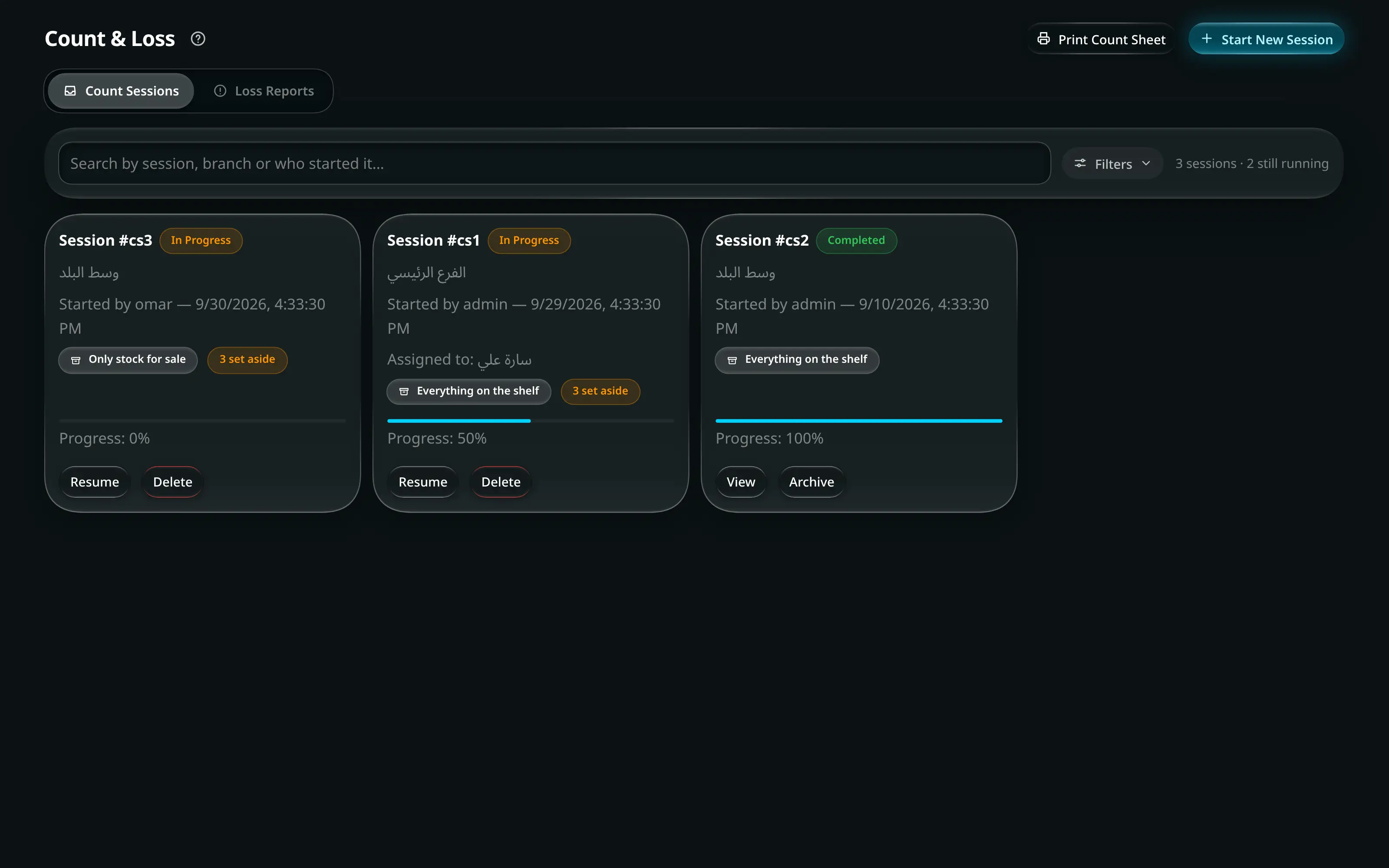
- Where it is
- Home
- Count & Loss
- Who can open it
- EveryoneEveryone, but the two roles see different screens. An administrator gets the session list; an employee gets the session assigned to them, or the loss-report form.
- Tabs
- Count Sessions
- Loss Reports
- What it writes
- A count session, and every counted quantity in it
- Stock adjustments at the counted location, when the session is finalised
- An expense for the value of the shortage
- A loss report, and — when approved — the stock deduction it describes
What an employee sees
Not this screen. If a count session is assigned to them and still running, opening Count & Loss puts them straight into the count. Otherwise they get the loss-report flow. The tabs are not drawn at all.
That is the design: a person on the floor with a phone should not have to find anything.
Running a stocktake
Start a sessionadmins onlyللمديرين فقط
- Home
- Count & Loss
- Count Sessions
- Start New Count Session
Select branch or warehouse — the session snapshots that location’s book balances at this moment, and every count is measured against that snapshot.
Choose how the shelf will be countedadmins onlyللمديرين فقط
This is the decision that makes a count meaningful, and the app asks it in plain words: How will your team count?
Mode Choose it when Each item then shows Everything on the shelf Packed orders are still sitting in the same room Expect on shelf — book balance plus what is set aside for open orders Only stock for sale Packed orders live in a separate area The free balance only — do not count the packed ones Getting this wrong is the classic false shortage: an order packed and waiting for a courier is stock you still own, and counting it under the wrong mode reports it as missing.
Assign to employee (optional) hands the session to one person’s phone. Left unassigned it is administrator-only.
Each row asks two questions rather than one: Physically present? and How many are on the shelf? — with − Enter qty… +.
The row states what the app believes — System says, Book says — and what it expects, and it labels the result as you type: Matches system, Surplus, Shortage.
Filters narrow a long count: Not counted Differences Has packed orders.
Save Progress at any point — a count survives a closed app, a dead battery and a shift change. Set aside lists every open order holding stock at this location, live, so a counter can see exactly what is packed and why.
Review only the differencesadmins onlyللمديرين فقط
Review & Finalize.
The review lists only items whose physical count differs from the system — with On shelf, Book says, Difference, and the shortage value in money, which is the figure that tells you whether a count is a rounding problem or a real one.
A perfect count says so: No discrepancies — every count matches system stock.
An incomplete session is not silently accepted: Incomplete session, with Finalize anyway as an explicit choice.
Finaliseadmins onlyللمديرين فقط
Finalize & Update Stock.
A finalised session becomes read-only: This session is finalized — counts are read-only.
Administrators only
Managing sessions
| Control | Does |
|---|---|
| Search sessions, From Date, To Date, Status | Narrow the list. Status is All · In Progress · Completed |
| Show Archived | Archived sessions are hidden by default |
| / | Continue a running session, or read a finished one |
| / | It stays available under “Show Archived” |
| This permanently deletes the count session and everything counted in it | |
| Print Count Sheet | A paper sheet to count onto, before typing anything. On Basic it lists products only |
| Export count | CSV of the session |
Loss and damage reports
A loss report is for stock that is gone for a reason you can name — broken, expired, stolen, spilled. Anyone can file one; only an administrator can approve one, and nothing leaves stock until they do.
- Count & Loss
- Loss Reports
- New Report
Field What was lost? Raw Material or Final Product. On the Basic package, which has no materials, it is always a product and the question is not asked Search… The item. It shows the total system stock, and the balance at the location once you pick one Location Where it was lost. Choose a location to see its balance Quantity lost Loss Type The reason Description What happened? Photo (optional) Evidence, taken from the phone’s camera Submit for review → Loss report submitted for review.
Review itadmins onlyللمديرين فقط
- Count & Loss
- Loss Reports
- a report
Filter by Pending Approved Rejected. Open one for the item, quantity, estimated value, who reported it, the reason and the photo.
Approve or Reject. Approving asks Deduct from — which location the stock comes out of — because a report filed against total stock does not say.
An employee sees only their own reviewed reports here: You have no reviewed reports yet.