
- Where it is
- Home
- Add Order
- Who can open it
- EveryoneEveryone.
- What it writes
- The order itself, with its own order number taken from the branch counter
- A stock decrement at the branch — or, for a workshop or factored product, its components and materials instead
- A workshop job, when a line needs one
- The customer record: name, any new address, and the order added to their history
- One income entry in the cash registry, when an amount was paid
- An expense entry for the cost of any service line
- A wallet deduction, if wallet credit was used
- The online lead marked approved, when the order came from one
Use Add Order whenever the sale has a future: money still owed, goods still to move, work still to do, or a date to hit. If none of that is true, the sale finishes faster in Quick Order.
The shape of the screen
Three panels, plus the drafts strip above them.
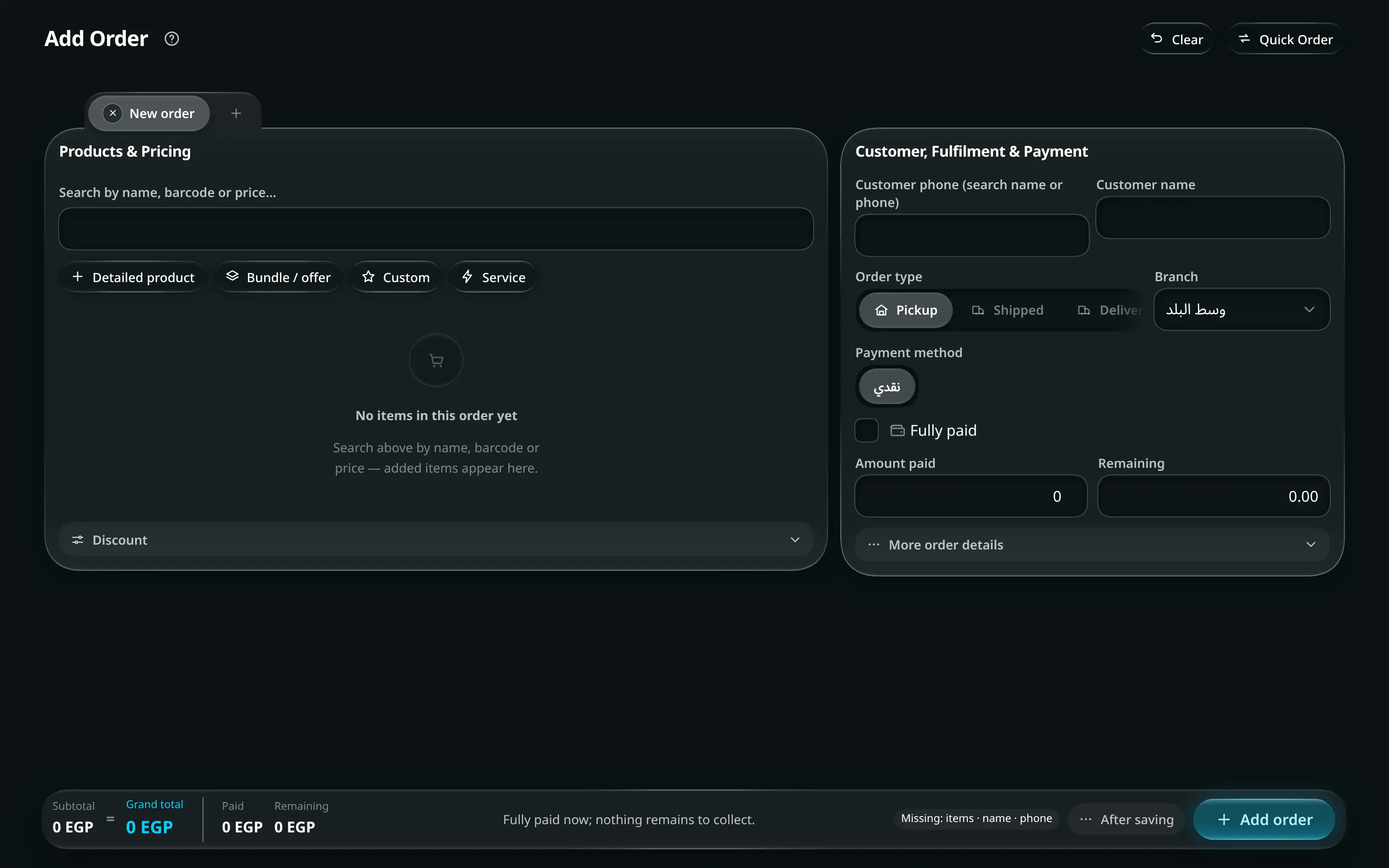
Add Order. Products and pricing on one side, customer, fulfilment and payment on the other, totals following along.
Numbered on the screenshot
- 1The title — Add Order, Edit Order, or Approve online order, depending on how you got here.
- 2Clear, Quick Order, and the save. Quick Order sits beside Clear and moves this draft there as a walk-in counter sale; the save is the only glowing button on the screen.
- 3The drafts strip joins the Products & Pricing panel. Up to five orders can be part-written at once; use + to start one and double-click a tab to rename it.
| Panel | Holds |
|---|---|
| Products & Pricing | The item search, the four add buttons, every line, and the discount |
| Customer, Fulfilment & Payment | Who it is for, how it leaves the shop, and how it is paid |
| Order totals | Subtotal, discount, shipping, grand total, amount paid, remaining |
Drafts
The strip at the top holds up to five part-written orders. A sixth is refused: You can keep up to five order drafts open.
- The + button beside the tabs starts another draft.
- Double-click a tab to rename it. Left unnamed, a tab takes the customer’s name.
- A draft marked Shared draft is visible to your colleagues on their own devices — one person can start an order and another can finish it. The app tells you when it was saved on another device or closed on another device.
- An empty draft closes straight away. A draft with any items or details asks first: Cancel this order draft? Its unsaved items and details will be discarded.
Taking an order
- Customer, Fulfilment & Payment
- Customer phone
Customer phone (search name or phone) searches as you type and matches on name or number, tolerating a different prefix or a near miss.
Picking a match fills in the name and pulls up their history, their wallet balance and their saved addresses. A number with no match offers to save it as a new customer.
Choose a different customer detaches the one you picked; Not for a customer clears the recipient entirely.
- Products & Pricing
- Search by name, barcode or price…
The same search engine as Quick Order: name, barcode, or a price. Results are filtered to what the chosen branch actually holds, and every match remains available — there is no result cap.
Button Adds Detailed product A product with its variant, customisation fields and, where allowed, a hand-set price Bundle / offer A bundle — the stock comes out of its contents, not out of a “bundle” Service A service. Its cost is booked as an expense when the order saves Custom A one-off line, with a name and price you type A line for a workshop product carries its own block: base material cost, workshop labour/fee, and which Workshop the job goes to. Saving the order creates the job.
Apply wholesale prices to this order re-prices every line at wholesale. It turns itself on automatically for a customer flagged as wholesale.
Discount takes an Amount or a Percent. A discount that would take the order below cost is capped, and the screen says Discount capped at cost-price margin and shows what was actually applied.
Redeem loyalty points Pro sits in the same place when the customer takes part in Loyalty points: Balance …, worth …. Up to … on this order. Type the points and press Redeem; their value is added to the discount and the line reads Points redeemed. It offers at most what the customer holds and what the order has room for, and only with an Amount discount — Points are redeemed with an amount discount, not a percentage. Redeeming needs a connection; offline, cancel the redemption to save. A returned or cancelled order gives the points back by itself.
- Customer, Fulfilment & Payment
- Order type
Pickup Shipped Delivery — and each reveals only the fields it needs.
Type Then fill in Pickup Nothing more. The customer collects from the branch. Shipped Shipping company, Governorate, Shipping price (to customer), Full customer address Delivery Delivery service, Delivery fee (to customer), Full customer address Picking a shipping company and a governorate fills the price in from that company’s own rate card — see Shipping & Delivery.
Giving the address an Address label (Home, Work) saves it to the customer’s address book for next time. Without a label it is used once and not saved.
Branch is where the stock comes from and where the money lands. It defaults to yours, and if you change it the screen warns This is not your default branch.
The order number is taken from that branch’s own counter when the order saves.
- Customer, Fulfilment & Payment
- Payment
Pick the payment method, then set Amount paid. Remaining is computed and is what the customer still owes.
Three checkboxes change that arithmetic, and it is worth reading this table once because the third row is the one people get wrong:
Ticked Amount paid becomes Remaining Fully paid The grand total, locked Zero Fully paid and a collects box Grand total minus shipping, locked The shipping only — the goods are prepaid and the courier collects the shipping Shipping company collects or Delivery driver collects alone Whatever you type, default zero The whole outstanding amount — the courier collects it all, and the tick only records who collects When a box locks the amount, the field says why: Auto-set: order is fully paid, Auto-set: goods prepaid, courier collects the shipping, The courier collects the remaining amount.
Fill in the details that make it findable lateroptionalاختياري
More order details folds out:
Field Why it matters Status Where the order sits in your pipeline. The statuses are yours, defined in Resources Source Where the order came from — walk-in, phone, the online store, an ad Expected delivery date Drives the SLA tab and the late/urgent alerts on the home screen Urgent Flags it in the same places Notes Free text. Shown as a 📝 badge on the order card Save — or Save changes when editing, or Approve & create order when you arrived from an online order.
A confirmation panel shows the grand total, the amount paid and the remaining before anything is written. Stock is re-checked per line at the branch at this point; a line that no longer has stock stops the save and names the item.
After saving decides what happens next: Print after save with a Receipt / Invoice choice, and Send confirmation via WhatsApp.
Editing an order later
- Current Orders
- a row
- Edit
The same form, titled Edit Order, with the order loaded. Cancel edit asks Discard these order changes? before throwing them away.
Approving an online order
- Current Orders
- Leads
- a lead
- Approve
An order from the online store arrives as a lead and is reviewed before it becomes a real order. Approving one opens this same form in Reviewing an online order mode, which states plainly: Saving creates the order and marks this online order approved.
Everything the customer entered — items, address, payment reference — is already filled in. Fix what needs fixing, then Approve & create order. Back to online orders leaves without approving.
Common refusals, and what they mean
| Message | Fix |
|---|---|
| Add at least one item. | The order has no lines |
| Choose a branch. | No branch selected |
| Choose a payment method. | Required on a new order |
| Choose a shipping company. / Choose a delivery service. | The order type needs one |
| Enter the address. | Shipped and delivery orders need one |
| Enter a valid phone. | The number is not a usable phone number |
| Not enough stock at this branch: | The branch cannot cover a line. Change the branch, the quantity, or receive stock first |
| Required customization info is missing for … | A customisable product has a mandatory field left blank |