
- Where it is
- Home
- Store Control
- Who can open it
- Administrators onlyAn employee account cannot open this screen at all.
- Tabs
- Overview
- Leads
- Reviews
- Carts
- Storefront
- What it writes
- A lead’s status — approved, held or rejected
- The order itself, when a lead is approved, plus the stock it takes
- Review status and your public reply
- Storefront categories, discount codes, banners and settings
- Store credit returned to a customer, when a paid lead is rejected
The storefront is a separate site your customers browse. This screen is its back office.
Overview
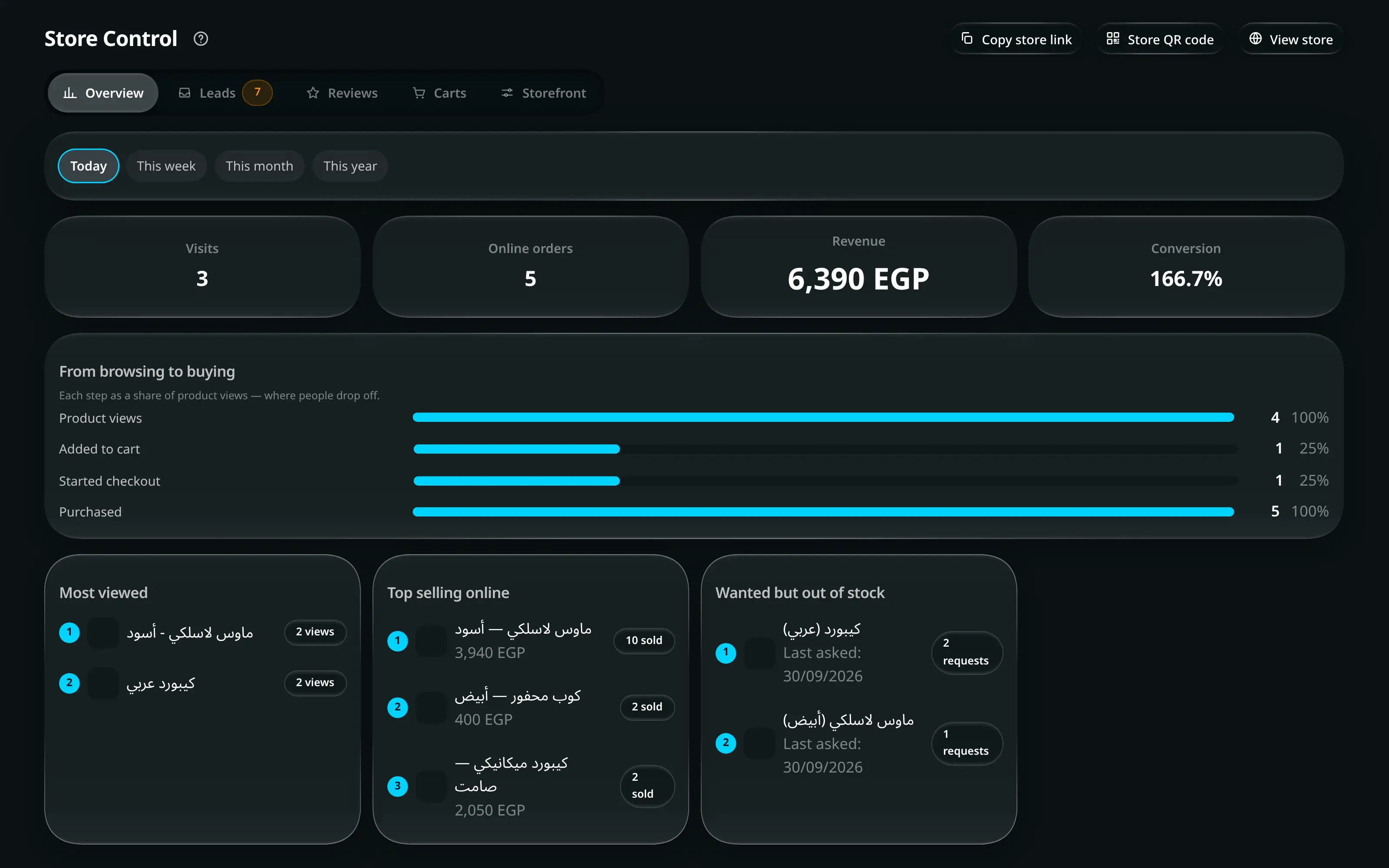
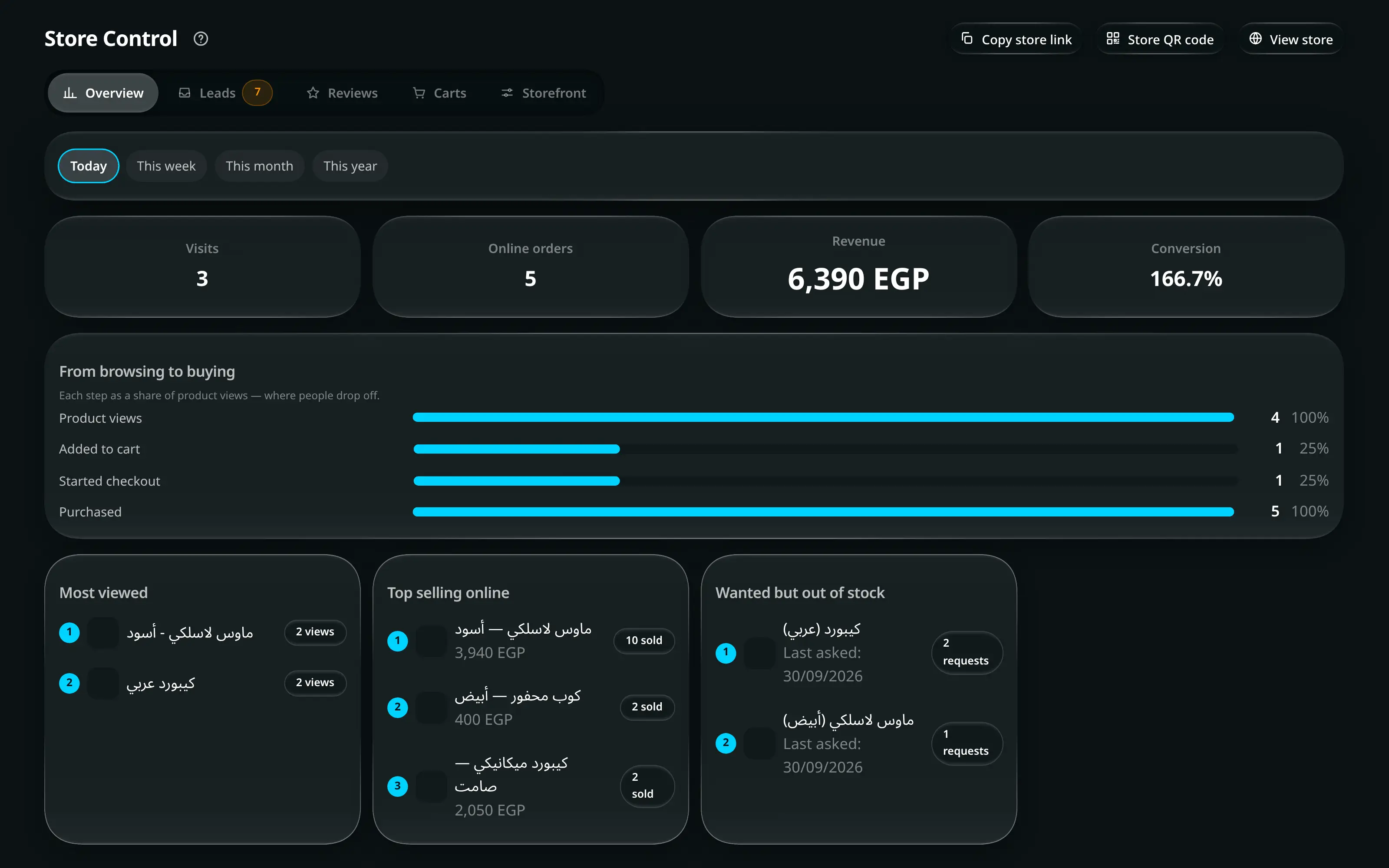
Numbered on the screenshot
- 1The title, plus the store link and its QR code.
- 2Copy link and the store QR code — what you put on a receipt or a shop window.
- 3Overview, Leads, Reviews, Carts and Storefront.
- 4The period and filters that scope the figures.
| Figure | Is |
|---|---|
| Visits | Sessions on the storefront |
| Revenue | What the store produced |
| Conversion | Visits that became orders |
| From browsing to buying | The funnel — each step as a share of product views, so you can see where people drop out |
| Wanted but out of stock | What customers asked to be restocked |
| Value sitting in carts | Money in abandoned baskets |
Copy link and Store QR code are how the store gets onto a receipt, a card or a shop window.
Leads — reviewing an online order
A lead is a customer’s submitted basket. It is not an order and has taken no stock until you approve it.
- Store Control
- Leads
Filter by Pending Approved Rejected On hold. The tab says how many need review.
Payment proof enlarges the screenshot the customer uploaded. This is the manual verification step — there is no card gateway, so the proof and your own bank or wallet app are what confirm the money arrived.
Button Result Review & approve Opens the order form pre-filled. Saving creates the order, deducts stock and marks the lead approved Hold The order stays in the queue but is marked on hold. Return to queue undoes it Reject No order is created and no stock moves. Any discount code used is released for reuse, and store credit the customer spent is returned
Reviews
Customer reviews wait for moderation before they appear on the storefront.
| Action | Does |
|---|---|
| Approve | Publishes it |
| Reject | Keeps it off the store |
| Reply | Shown publicly under the review in the store |
| It is removed for good and the product’s rating is recalculated |
Search and filter by status. Replying is the higher-value action: a bad review with a visible, reasonable reply reads better than a bad review that was quietly deleted.
Carts
Baskets customers filled and did not check out, with what is in them and what they are worth.
WhatsApp follow-up opens the send sheet with your Unfinished cart message — written in Resources → WhatsApp messages, with the basket already listed — and Copy & open WhatsApp copies it and opens the chat.
Storefront
Four tools plus the settings.
Categories
Group products into sections customers browse. A name, an image, and the products in it.
Discount codes
Codes customers enter at checkout for a discount.
| Field | |
|---|---|
| Code | What the customer types |
| Percentage % or a fixed amount | The discount |
| Min | Minimum order value |
| New customers only | Limits it to first orders |
| Usage limit | How many times it can be used |
Deleting one: Customers can no longer use it. Orders that already used it are unaffected.
Banners
The slideshow at the top of the store. Order here is the order customers see. Each banner has a headline, an image per device size, and an optional action — a link, a discount code, “my orders”, or a WhatsApp chat. Under the list, the tool counts how many of the banners you have are actually showing in the store.
Settings
Address, opening hours, support WhatsApp, minimum order, shipping fees, the default product image, and links to your privacy policy and terms.
Occasions and loyalty on the storefront Pro
Two programmes you run from the shop also show up in a signed-in customer’s account on the storefront. Each appears only while it is switched on in Resources → General Settings and the customer takes part in it.
- My occasions — Save the days that matter to you and the people you love, so the shop can remember them with you. The customer can Add an occasion and edit their own. One you added from the shop is marked Added by the shop and they cannot change it.
- Loyalty points — their balance and tier. You earn points on every order, and the shop can turn them into a discount for you. A customer outside the programme sees Your points are kept, but you are not earning new ones right now. Points are only redeemed by you, in Add Order.
The occasion form link
From a customer’s profile (Occasions tab, Create link) you can send a private link to the storefront — no sign-in needed. It opens Tell your shop about the days that matter, lists what is Already saved with the shop, and lets the customer add up to a set number of new rows at once (Add another occasion, then Send). A date that is already saved is not repeated; the thank-you screen says how many were added and how many were skipped. See Customers → The customer form.
How an online sale flows through the app
- The customer orders on the storefront → a lead.
- You review it here, or in Current Orders → Leads — the same queue, two doors.
- Approving opens Add Order pre-filled; saving creates the order, takes the stock and records the payment.
- From there it is an ordinary order: status, fulfilment, settlement, invoice.