Everything in Joey Cash sits behind the same header and the same home screen. Learn those two and every other article in this wiki becomes a short walk from a tile you already know.
Signing in
You sign in with a username, not an email address. Emails are used for one thing only — the password reset link.
A device that has been used before opens on Welcome back with the saved accounts listed. Tap yours, or tap Use another account to sign in as someone else.
Each saved account has a small ✕ beside it. That removes it from this device’s list. It does not delete the account or end its session anywhere else.
Username and Password, then Sign in.
Remember me keeps you signed in on this device between visits. Leave it off on a shared terminal.
If you forgot the passwordoptionalاختياري
Forgot password? asks for the email address on the account — not the username — and sends a reset link to it.
The header, left to right
The header is the same on every screen in the app.
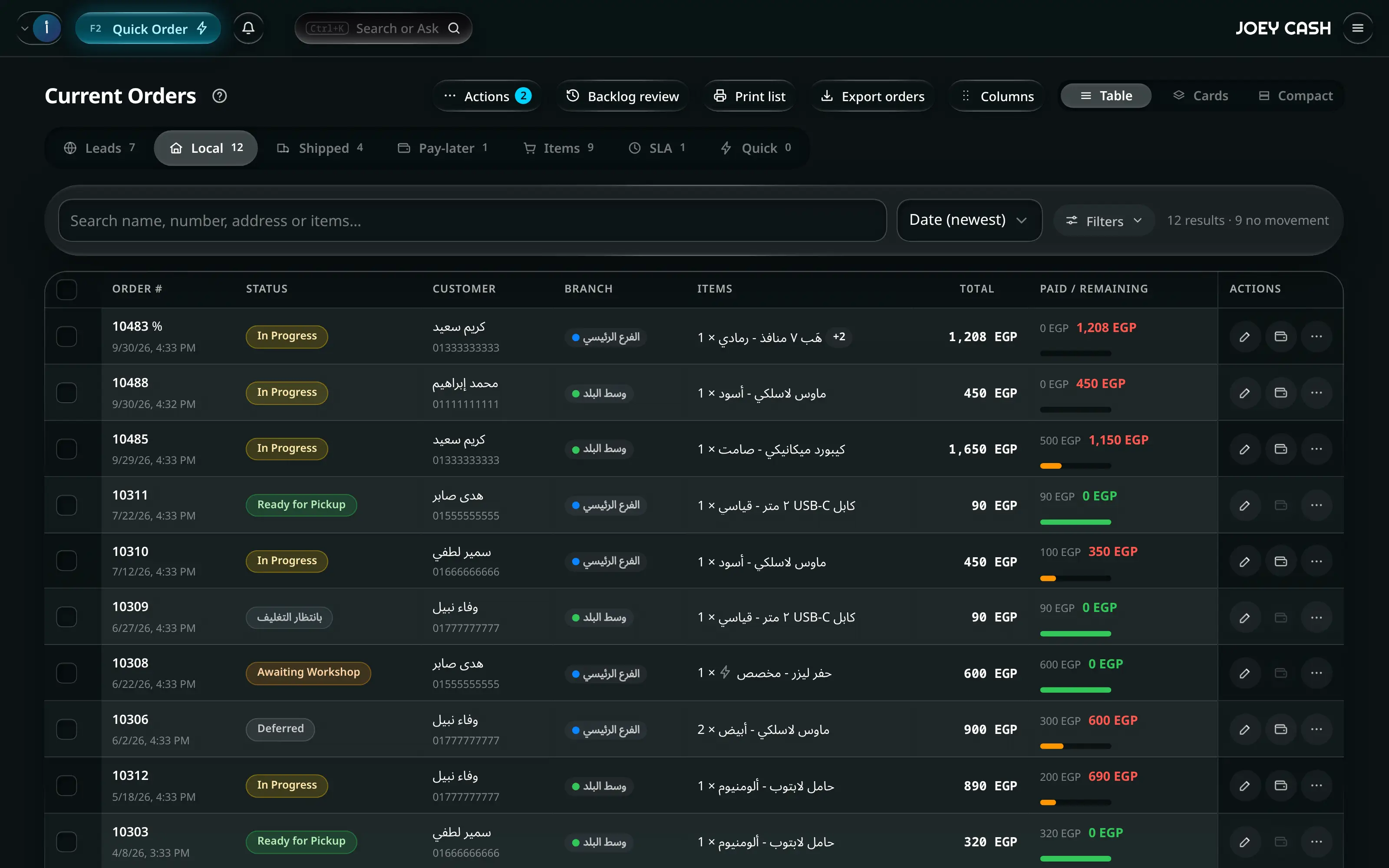
The same application header appears above every workspace.
Numbered on the screenshot
- 1Menu opens the section drawer: every workspace your account may open, grouped in the same order as the Home screen.
- 2The store name or Joey Cash wordmark returns to Home. Hold it there to open the About panel.
- 3Search or Ask opens the global palette. It searches the whole app, unlike a screen’s own toolbar search.
- 4Notifications opens your inbox. Administrator-only notices never appear in an employee account.
- 5Quick Order opens the on-the-spot sale sheet. F2 does the same on a keyboard.
- 6Your account chip opens the Control Center for display, workspace and accessibility settings, devices and sign out.
| Control | What it does |
|---|---|
| Menu | Opens the section drawer — every screen you are allowed to open, grouped. |
| Back | Appears only when there is somewhere to go back to. |
| The wordmark | Returns to the home screen. Pressing and holding it opens the About panel. |
| Search or Ask | The global palette. Ctrl + K from anywhere. |
| Notifications | The inbox. Administrator-only notices never appear in an employee’s. |
| Quick Order | Opens the on-the-spot sale sheet. F2 from anywhere. |
| Your name chip | Opens the Control Center — display, workspace and accessibility settings, devices, sign out. |
Notification controls
- Notifications
- Controls
The Controls button in the inbox opens the settings, in two tabs. Delivery decides how a notice reaches you (the in-app inbox, the browser, sound, quiet hours); Categories decides which kinds do.
Order deadlines is its own card on Delivery. It never sends one alert per order. Instead you get at most two summaries a day, each listing the orders by number:
| Switch | When | What it says |
|---|---|---|
| Morning brief | Around 9:00 | Orders due today and orders already late. Sent only when something has changed since the last one |
| Afternoon reminder | Around 15:00 | Only if orders due today are still not delivered. Late ones are left to the morning brief |
A new summary replaces the previous one on the lock screen rather than piling up. Tapping it opens the SLA tab in Orders, or the order itself when there is only one. The Order deadlines row under Categories turns the browser or sound off for them without turning the summaries off, and Quiet hours mutes them like anything else.
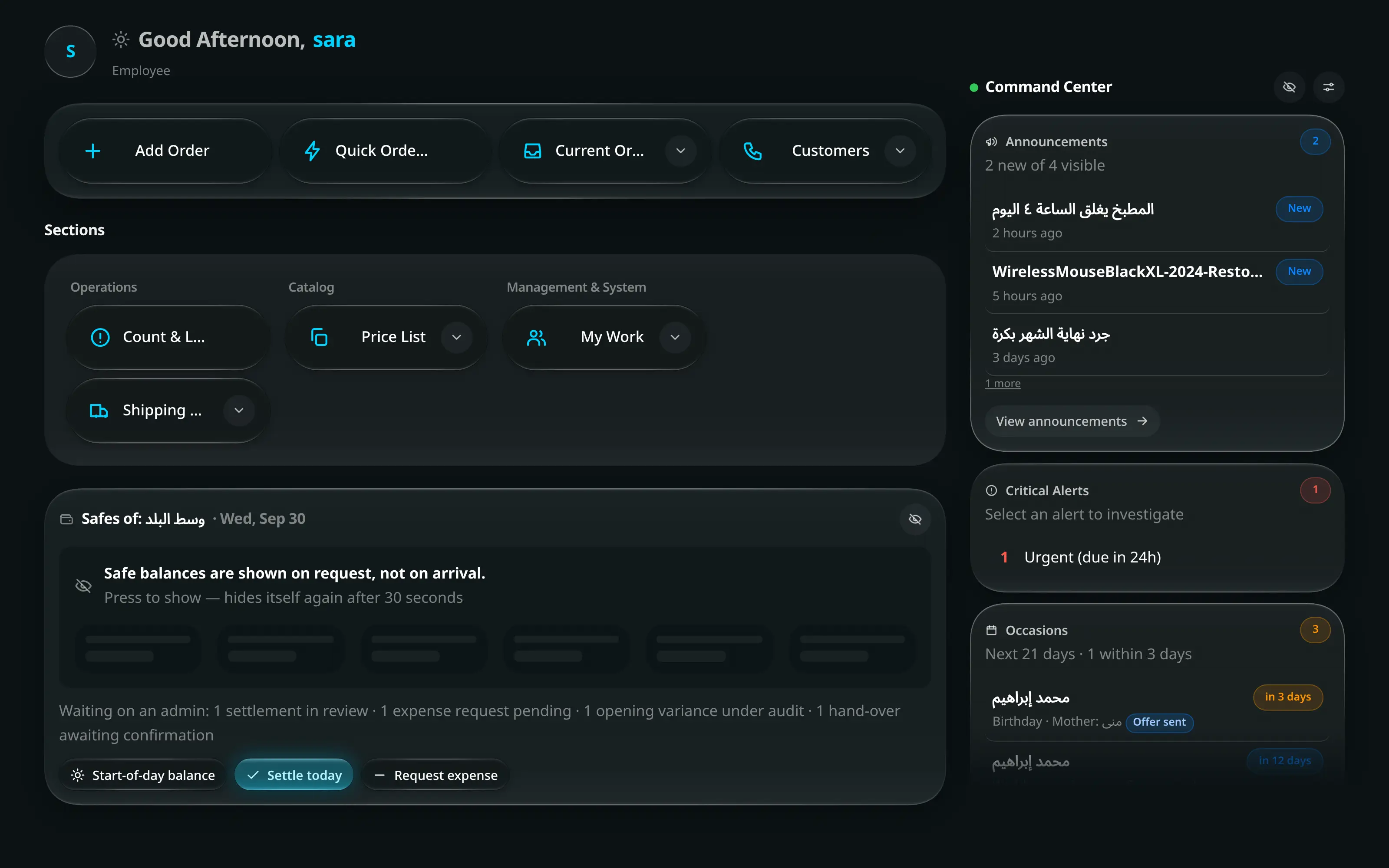
The home screen
Home has two views behind a tab strip, plus the Command Center beside them.
- Home
- Today
Your greeting, your quick actions, the Daily cash drawer for your default branch, and the Command Center widgets.
The cash drawer card is where an employee starts and ends a shift: it shows what the safe opened with, what came in, what went out, and what should be in it right now. See Cash Registry for what happens to those numbers.
- Home
- Sections
Every workspace as a tile, in four groups: Operations, Catalog, Money, Management & System. This wiki is organised in the same four groups, in the same order.
A tile you are not allowed to open is not shown. It is not greyed out — an employee simply has a shorter grid.
The Command Center
A column of widgets that answer “is anything waiting for me?” without opening anything. Customize reorders them and switches individual ones off; Hide figures blanks every money figure on the screen for when a customer is looking over the counter.
| Widget | Answers |
|---|---|
| Action Required | How many expense requests, settlements, leave requests, salary advances, attendance corrections, online leads and supply orders are waiting. |
| Critical Alerts | Out-of-stock and low-stock variants, late and urgent orders, pending approvals, overdue recurring charges. |
| Quick Stats | Today’s revenue, net profit and average order. |
| Order Status | Processing, shipped, delivered, returned — today. |
| Team Pulse | Who is on duty, who arrived late, who is off. |
| New Arrivals | The most recent orders. |
| Announcements | Notices posted from Administration. |
| Recurring Charges | What is due, and what is late. |
| Occasions | Customers’ birthdays, anniversaries and other dates in the next 21 days, soonest first. A row opens that customer’s Occasions tab; All occasions opens the full list. Shown only when occasions are switched on. |
The section drawer and the side dock
Menu opens the drawer: the same four groups as the home grid, as a list. On a wide screen there is also a side dock pinned to the edge — a column of icons that widens when you point at it and shows each section’s name.
Both are filtered by what your account can open, and both are the same list. Use whichever is closer to your hand.
Finding anything: Ctrl+K
- Anywhere
- Ctrl+K
The palette searches three things at once and labels each result with which it is:
- Sections — jump to any screen by name.
- Records — orders by number, customers by name or phone, products by name or barcode, employees, suppliers, workshops, transactions, count sessions, tasks, announcements, supply orders and invoices.
- Actions — things the app can do, run from the palette without navigating.
Arrow keys move, Enter opens, Esc closes. It is covered in full in Finding anything.
The Control Center
Your name chip in the header opens it. Its settings are split across three pages — Display, Workspace and Accessibility — and it reopens on the page you used last. Every setting here belongs to this device, so a shop computer and your phone can be set up differently.
Display
| Setting | Options | Notes |
|---|---|---|
| Theme | Light · Auto · Dark | Auto follows the device. |
| Language | English · العربية | Switches the whole app, including direction. |
| App color | A swatch row, plus a custom picker | Cosmetic. |
| Performance mode | Off · On | Turns off background blur and makes panels opaque. Faster on cheap terminals. |
| Clock | 12-hour · 24-hour | The clock in the header. Hidden on screens too narrow to show that clock. |
Workspace
| Setting | Options | Notes |
|---|---|---|
| Open on sign-in | Home · Add Order · Current Orders · Customers · Dashboard | The screen the app opens on after you sign in. Remembered per account on this device; only screens your role can open are offered. |
| Default branch | Your branches | Decides which branch new screens open on. |
| View as | Admin · Employee | Administrators only. See Roles and permissions. |
Accessibility
| Setting | Options | Notes |
|---|---|---|
| Text size | Small · Default · Large · Extra large | Scales all text and the controls around it. |
| Bold text | Off · On | Heavier type everywhere. |
| Contrast | Standard · High | Darker secondary text and stronger edges. |
| Motion | Auto · Reduced | Auto follows the device’s own setting; Reduced turns off the springs and slides in this app only. |
| Transparency | Standard · Reduced | Makes the glass panels solid, so text never sits over a busy background. |
| Light effects | Full · Soft · Off | The light that follows the pointer across buttons, menus and tabs. Soft dims it to under half; Off removes it entirely, the same way Performance mode does, while leaving the glass as it is. |
| Status colors | Standard · Color-blind safe | Swaps green, amber and red for blue, yellow and orange everywhere a status is colored. Each option shows its three colors as dots. |
At the bottom of every page:
| Action | Notes |
|---|---|
| Signed-in devices | Every browser signed in to your account, with a sign-out per row. |
| Sign out | Ends this device’s session. |
Working with no internet
Joey Cash keeps working when the connection drops. What changes is visible and deliberate:
- A sale you complete is saved on the device and marked Saved safely — will confirm when online.
- When the connection returns, each queued order is re-checked against live stock and prices before it is accepted.
- Anything that no longer adds up — an item that sold out in the meantime — lands in an Offline orders review list rather than being silently accepted. Each row there offers Retry, Create replacement, Keep for later or Close — not created.
- An order that repeats one already saved, with the same customer and the same items, is held there as a Duplicate. This is usually the same sale typed again on a second device while the connection was down. The window shows Same order saved twice? with both orders side by side. Choose Discard this copy, Save as a second order if the customer really did order twice, or Keep for later.
- New orders and comments are the only things saved offline. Changing an order that is already saved (its status, a payment, a settlement, a return or a delete) needs the connection. Offline, the app says Changing a saved order needs a connection, so nothing was changed. To record what should happen, add a comment to the order.
When Sync Status says Update available, open it and choose See changelog to read what changed before choosing Update app.