
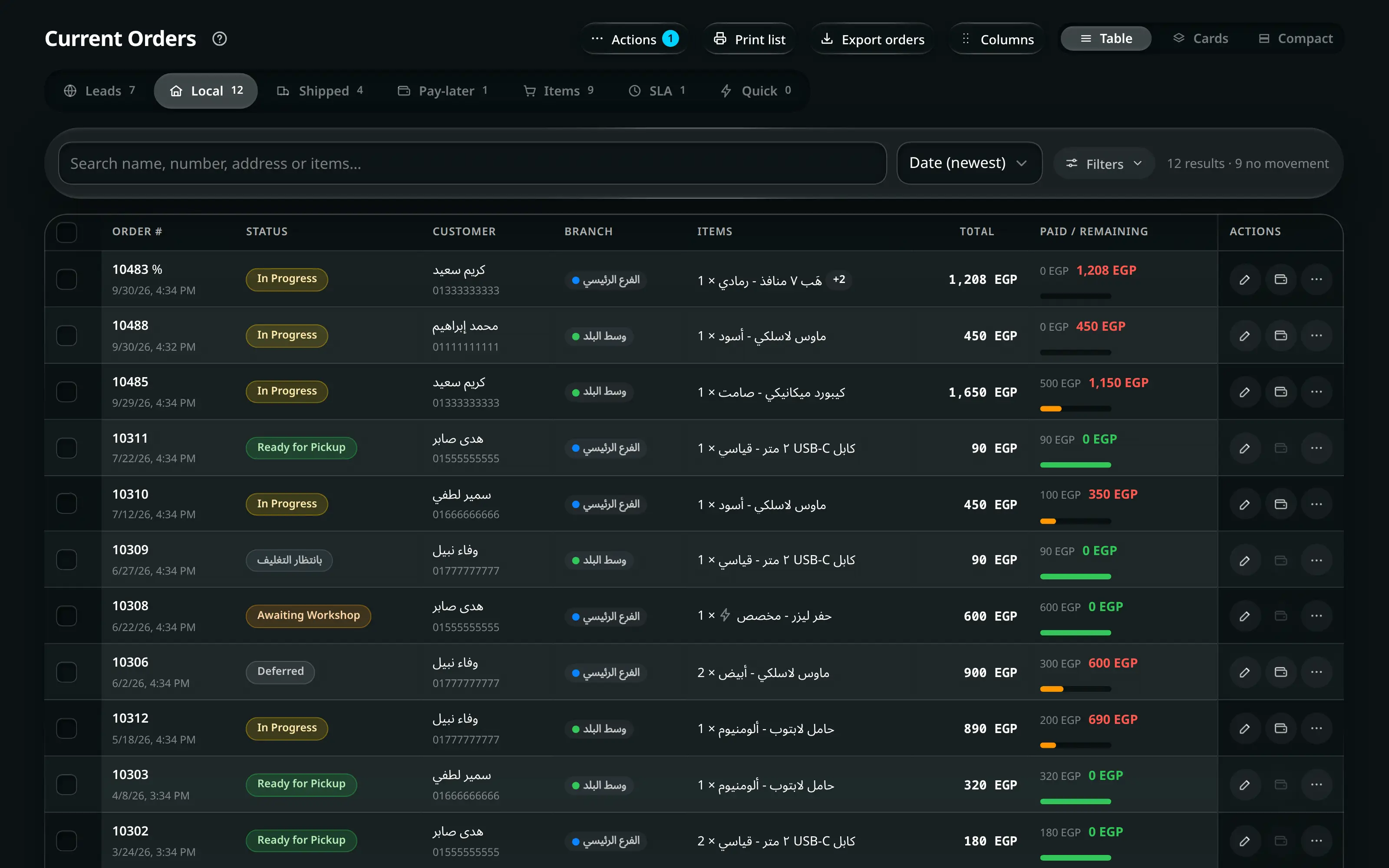
- Where it is
- Home
- Current Orders
- Who can open it
- EveryoneEveryone. The financial columns — shipping cost, shipping profit, gross profit — and deleting are administrator-only.
- Tabs
- Leads
- Local
- Shipped
- Pay-later
- Items
- SLA
- Quick
- What it writes
- Order status changes, singly and in bulk
- A settlement: the collected amount as income, and the courier’s side of it
- A return: stock back, and a refund out of the safe where one is due
- A wallet deduction, when store credit is applied to a balance
- A lead marked approved, held or rejected
- A deletion, administrators only — written when the ten-second Undo lapses, not at the press
The seven tabs
A tab decides which orders you are looking at. Each has its own filters and remembers them.
| Tab | Holds |
|---|---|
| Leads | Orders from the online store, waiting to be reviewed. Not real orders yet |
| Local | Pickup and local delivery. The default |
| Shipped | Anything with a shipping company on it |
| Pay-later | Everything with an outstanding balance, whoever owes it |
| Items | The same orders seen as items — what is being made and what is going out |
| SLA | Ordered by promised date. Late and urgent first. The same deadlines feed the morning brief and afternoon reminder |
| Quick | The counter sales from Quick Order, by day and branch |
On the Basic package there is no online store, so there is no Leads tab — six tabs, starting at Local.
Finding orders
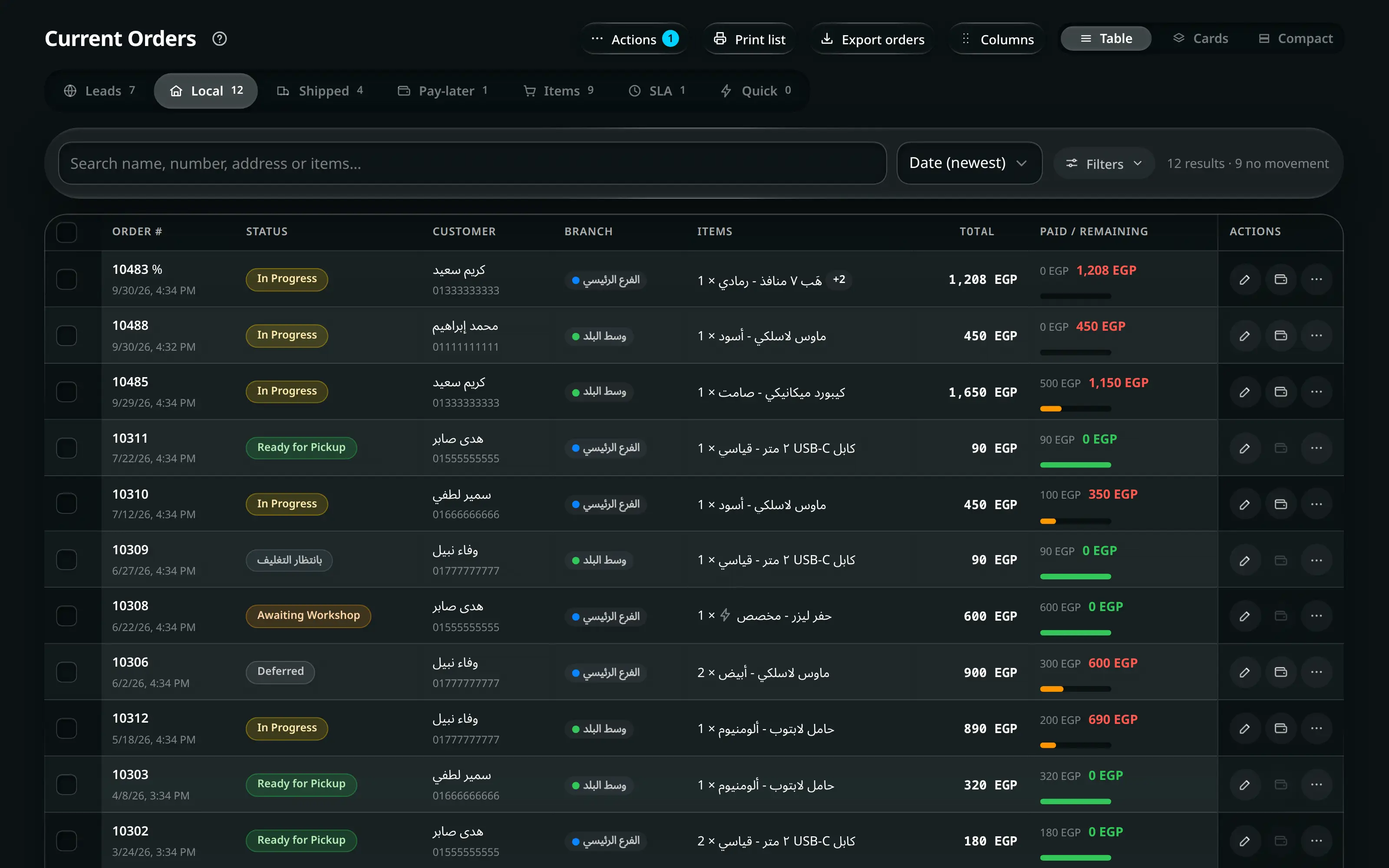
Current Orders on the Shipped tab.
Numbered on the screenshot
- 1The seven tabs. Each one is a different set of orders, not a filter on the same set.
- 2Search — customer, phone, order number, tracking number, anything on the order.
- 3Filters. Branch, status, shipping company, source, dates, work queues and the show/hide toggles all live behind here, and the number is how many are on.
- 4The actions that work on the FILTERED set rather than a selection: print the list, export, columns, review the backlog — and, behind Actions, change status and, on an administrator’s account, delete. If you have rows ticked, delete asks which set you meant.
- Filters
- Work queues
Five ready-made questions, each one press:
Queue Shows Needs attention Anything stalled, late, or missing something New today Created today Ready Finished and waiting to go out Payment due Money still to collect Returns Returned and cancelled orders The Filters3 panel holds everything else: branch, status, shipping company, source, a date range, grouping, sort — plus two toggles that are off by default and are often the reason an order “is missing”:
- Show delivered/settled — finished orders are hidden until you ask for them.
- Show old returns (>3 days) — same, for returns.
Applied filters show as removable chips when the panel is closed. If a list looks too short, read the chips.
On a phone the toolbar is one line: the search and Filters side by side. Sort moves inside the panel, as its first field.
- Current Orders
- Layout
Table Cards Compact. Cards are the default on a phone, the table on a desktop, and your own choice wins and is remembered per tab and per device.
Columns controls the table. A compact set always shows — order and date, status and SLA, paid and remaining with a progress bar, and the branch tag — and the rest are optional column groups.
Acting on one order
Open a row to get the details panel: a money band at the top, then shipping and status, the collection method, the products, and the notes. In the table a row opens by pressing it, or from the keyboard — Tab to the row, then Enter.
The table’s last column is the row’s own actions, and it holds three: Edit, Pay, and ⋯ for everything else — comment, print, and, on an administrator’s account, delete.
| Action | What it does |
|---|---|
| The full record | |
| Opens it in Add Order | |
| Moves it along the pipeline | |
| Records what was collected — see below | |
| Takes items back — see below | |
| Opens Print studio for an invoice, receipt or shipping label, with a live preview | |
| The address block, for pasting into a courier’s system |
Changing status
Pick the New status. The list holds only the statuses that can actually be applied to what you have in front of you — an option that fits none of it is not shown at all, rather than offered and then quietly skipped once the change runs.
A status that fits only part of a selection says so on its own line — applies to 3 of 7 — and one line under the list names how many options were hidden and the commonest reason: 2 status options are not shown.
Settling an order
- a row
- Settle order
Settling is how money that was collected outside the shop gets into the ledger: the courier delivered, took the cash, and has now handed it over.
The panel asks What happened? and states the answer back to you in numbers before the button — who collected, how much, what is left on the customer and what is left on the order.
Three things it refuses, and each says why:
- Set the missing workshop cost first. — the order’s workshop fee is unknown, so the profit would be a guess. The Basic package has no workshops, so this is never asked there — an older order with an unpriced workshop job settles like any other.
- Collected is more than due. — with an option to record the excess as a refund.
- This order is collected on the buyer’s behalf — for a wholesale order where your trade customer’s own customer pays.
Use wallet balance applies the customer’s store credit against what they owe, and shows the balance before and after.
Taking a return
- a row
- Return / remove items
Pick the lines and the Return quantity per line. The panel then works out the refund itself and explains it:
| Case | What it says |
|---|---|
| They paid more than the order is now worth | Max refund — the difference — with Refund now |
| They paid less than the order is still worth | No refund: they have paid less than the order is still worth |
| They paid nothing | The customer has not paid anything on this order, so there is nothing to refund |
Acting on many orders
Two different things, in two different places, and the split is worth knowing:
| You want to act on | Where |
|---|---|
| The rows you ticked | The selection bar that appears at the bottom |
| Every order currently listed | The title row — Print list, Export orders, Columns, Review backlog, and Actions2 |
The second one is the one people miss.
The two actions that write are kept together behind Actions2, below a dividing line, rather than sitting in the row beside a print button — so neither is ever one stray press away:
| Action | Does |
|---|---|
| Changes the status of every order in the list | |
| Administrators only. See below |
Settling many at once
- Actions
- Change status
- a status that closes the order
Moving a batch to a status that finishes the order used to hand back every order that still had a question on it — money left to collect, a courier account still open, a workshop cost unpaid or never entered — and tell you to go and settle each one on its own. It no longer does.
If anything in the batch still needs deciding, one screen opens — Collect & mark delivered — and asks for all of it there. If nothing needs deciding, no screen opens at all and the batch is simply applied.
Three questions for the whole batch, along the top:
| Question | Answers |
|---|---|
| Who took the money on the carried orders? | The courier or The store. It starts on whichever the orders themselves say |
| The courier accounts on these orders | Settle them now or Leave them for Couriers — Leaving them open still marks the orders done — the money stays on the courier account in its own section |
| Workshop costs on these orders | Pay them now or Leave them unpaid, with the same promise about the workshop’s own section |
Then Payment method for every row, and the list itself. Each row carries the order, what is left on it, an amount to collect, and the status it will land on. Collect it all and Collect nothing fill the column in one press.
A row whose workshop cost was never entered says Enter the workshop cost and grows a Cost per unit field. Type it and the row joins the batch like any other. It is the last thing that used to send you back to a single order.
The method at the top is a default, not a gate. A row whose branch does not offer it falls back to that order’s own method and says so, and the receipt splits the cash accordingly — via each order’s own payment method.
Beside the list, What this covers states in numbers what Collect & apply is about to do: what is collected and by which method, what is left unpaid as customer debt, what is paid out to couriers and paid out to workshops, what stays with the couriers, and how many are being moved to the new status with nothing to collect. Anything still waiting on a workshop cost is named there too — Waiting on a workshop cost: 1.
Reviewing an online order
- Current Orders
- Leads
- a lead
A lead is not an order yet. Its card shows the whole basket, the customer, the payment proof if they uploaded one, and any warning worth reading before you accept it:
- Priced as wholesale, but this customer is not a trade account
- Store credit used exceeds the balance
- The recipient pays less than this order is worth
- Not paid yet
Then one of four:
| Button | Result |
|---|---|
| Approve & create order | Opens Add Order with everything filled in. Saving there deducts stock, creates the order and marks the lead approved |
| Put on hold | Parks it. Take off hold puts it back in the queue |
| Reject | Reject this online order? The customer will see it as rejected |
| View image | Enlarges the payment proof |
Messaging the customer
- a row
The same send sheet every screen uses: the message on one side, a WhatsApp-style preview of exactly what the customer will receive on the other.
- Which message — Order confirmation or the message for the order’s current status, both written in Resources → WhatsApp messages.
- Send — Text message or Invoice picture. The clipboard holds one thing, so the picture is copied instead of the words; paste it, then type anything else yourself.
- Message — editable for this customer only, with the same tags, formatting and Write with AI as the builder. Once you change it, Make this my standard message saves your wording for everyone.
Copy & open WhatsApp copies the message and opens a plain chat with that customer. Copy copies without opening. With no phone number on the order, WhatsApp opens for you to pick the chat.
Printing
Print opens Print studio. The same studio serves one order, the rows you ticked, or . Its right-hand Preview contains every selected order and every requested copy; for several orders it is labelled Bulk preview and states the order and page counts.
Start with a preset:
| Preset | Result |
|---|---|
| ETA tax invoice — A4 | The shop’s tax invoice to the buyer |
| ETA sales receipt — 80 mm | The shop’s thermal tax receipt; paper can be changed to 58 mm |
| Customer packing receipt | A non-tax slip for the parcel. On an on-behalf wholesale order it keeps the reseller’s brand and customer prices, not the shop’s trade margin |
| Shipping label | Only shipping and delivery orders are included |
You can change Document language, Copies per order, receipt width, footer note, logo, order notes and the optional verified ETA QR. ETA tax mode keeps customer details, addresses, payment method and the tax breakdown switched on because those are not presentation extras on a tax document.
The last setup is remembered on this device. Administrators can name it and press Save preset; that preset is shared with employees, who can use it but cannot save or delete shared presets.
Download invoice
On an invoice, Download invoice saves a PDF instead of
printing — one file per selected order, named invoice-<order number>.pdf, so a batch
downloads as a batch. It is the same document as the preview and the printout, on A4;
an invoice too long for one sheet is split across pages rather than squeezed onto one.
The button appears on invoices only, and an ETA preset that is not ready to print is
not ready to download either.
New orders arriving while you work
When orders arrive while you are looking at the list, the list does not jump. A banner appears — n new orders are waiting — and the list updates when you press it.
The same applies to orders taken while the device was offline: Offline orders waiting, with the review flow described in Getting around.